
Gift alert setup
How to add TikTok Live gift alerts in OBS or Live Studio
Use TTLiveConnect to turn supported live events into sound alerts and on-screen browser-source overlays, then verify the complete path before your audience arrives.
The short answer
TTLiveConnect maps supported TikTok Live events to sound alerts and browser-source overlays. Sound alerts play in the TTLiveConnect dashboard tab, so keep it open and capture that browser or application audio in OBS Studio or TikTok Live Studio. Visual widgets use a private browser-source URL. TTLiveConnect does not currently assign arbitrary custom videos or animations to individual gifts.
Before you start
- A free TTLiveConnect account connected to the TikTok handle you use for live streams.
- OBS Studio or TikTok Live Studio running on the same computer as the TTLiveConnect dashboard.
- A browser, application, or desktop audio source you can monitor before going live.
Set up gift alerts in five steps
Configure the trigger first, then connect the audio and visual output paths.
- 01
Connect your live handle
Sign in to TTLiveConnect, add the TikTok handle you use for live streams, and complete the dashboard readiness checks.
- 02
Create a sound alert
Open Sound alerts, choose Add sound alert, select a gift or another supported trigger, and choose a sound from the built-in library. Pro also supports your own MP3 uploads.
- 03
Keep dashboard audio active
Enable sound in the TTLiveConnect dashboard and keep that tab open throughout the stream. This visible tab is the sound-alert player.
- 04
Add an on-screen overlay
Open Stream overlays, configure the widget you want, copy its private browser-source URL, and add that URL to your OBS Studio or TikTok Live Studio scene.
- 05
Run a pre-live test
Fire the TTLiveConnect test, confirm the overlay appears in the scene preview, and confirm the alert moves the correct audio meter before you go live.
Capture the dashboard tab, not an audio overlay
The dashboard is the player. Your production software must capture its sound.
OBS Studio
Add browser or application audio capture for the TTLiveConnect dashboard, or use Desktop Audio when that is how your setup is routed. Trigger a test and confirm the Audio Mixer meter moves.
TikTok Live Studio
Add TTLiveConnect or its browser as an application audio source. Trigger a test and use Live Studio's audio preview before starting the live stream.
Visual route
Add a browser-source overlay
Top Gifters and Gift Menu are available on the Free plan, while Gift Cup is a Pro overlay. Each configured widget provides a private URL for a Browser source in your scene.
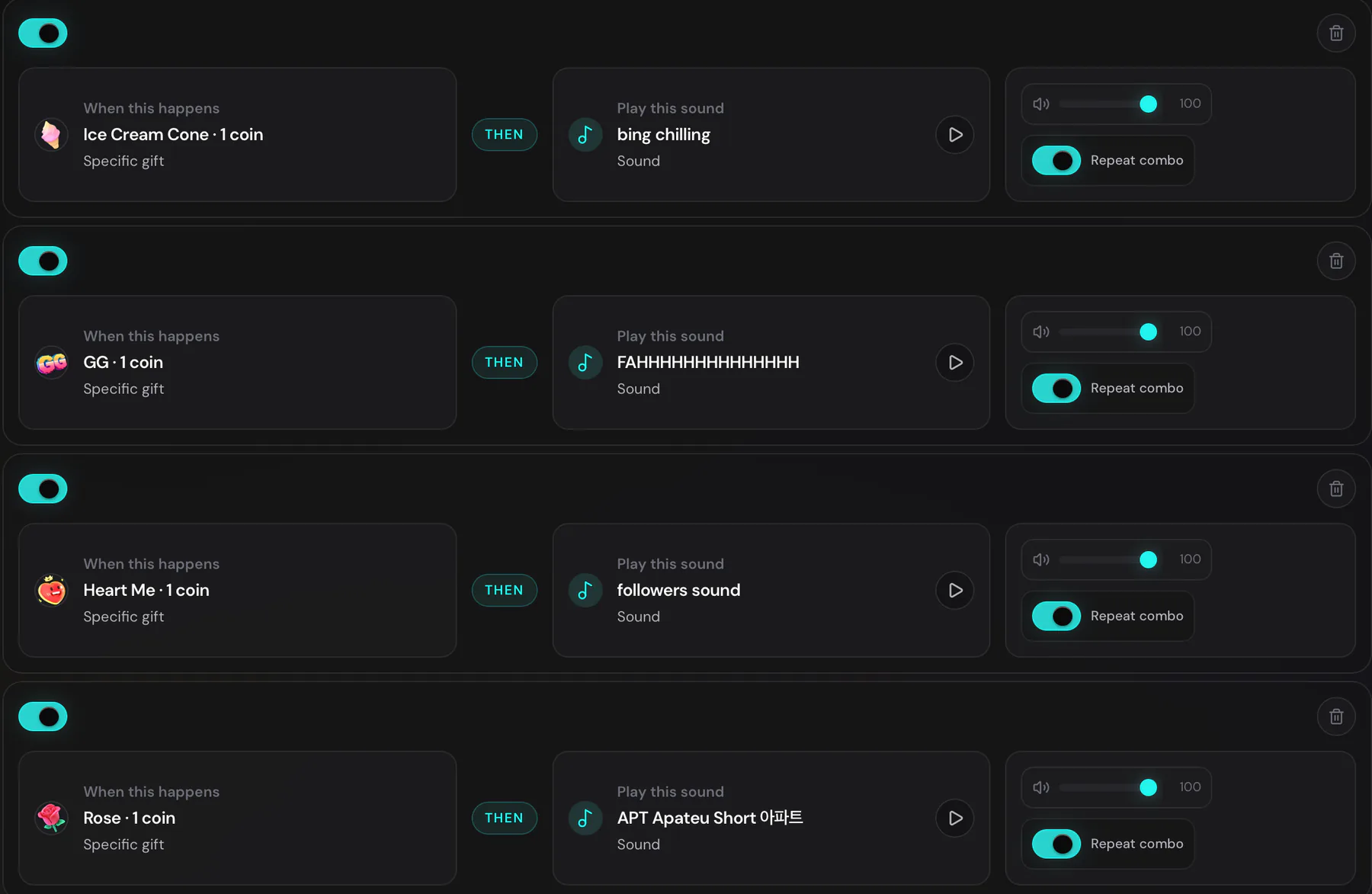
Gift alert setup guideReal product screen
See a sound alert rule before you build one
A stream trigger sits on the left, the sound it plays is in the middle, and its volume controls are on the right.
Gift alerts are not the same as custom gift effects
Available now
- Gift and supported event rules that play a selected sound in the dashboard tab.
- Top Gifters, Top Likers, Gift Menu, Gift Cup, and Timer browser-source overlays.
- A pre-live test path for checking scene output and captured audio.
Not available today
TTLiveConnect does not currently assign arbitrary custom images, videos, or animations to individual gifts. That is a separate future feature, not part of this setup guide.
Three checks before blaming the live connection
The alert is silent
Confirm sound is enabled in the TTLiveConnect dashboard, keep the tab open, trigger a test, and verify the intended browser, application, or desktop audio meter moves.
The overlay is missing
Confirm the private URL is in a Browser source, the source is visible in the active scene, and the TTLiveConnect test appears in the scene preview.
It works in TTLiveConnect but not on stream
Use the production software's own preview and audio-monitoring controls. A dashboard preview alone does not prove viewers receive the scene and audio mix.
Official references
Check the production software controls
Source names and audio options can differ by operating system and software version. These official guides describe the current controls.
Creator resources
Explore creator resources
Choose a product guide to plan your stream setup and understand how each tool works.
Build and test your first gift alert
Start free, connect your handle, and verify the dashboard-audio and browser-source paths before your next live stream.